For the complete documentation index, see llms.txt. This page is also available as Markdown.

Motion Factory Reference

Reference for the UI elements and product features in Motion Factory.

Motion Factory Dashboard

An orange avatar model standing in a gridded line with yellow callout numbers highlighting UI elements.
Overview infographic of the UI in Motion Factory.
  1. Y-up Axis.

  2. Character Settings.

  3. Playback Timeline.

  4. 3D Viewport.

  5. Control Settings.

  6. Step Navigator.

1. Y-up Axis.

A greyed out background,with a yellow #1 callout highlighting a compass.
Highlighted diagram of the Y-up axis in Motion Factory's UI.

Motion Factory uses a right-handed Y-Up Axis:

  • X is left

  • Y is up

  • Z is forward.

A circle with different colored circles placed inside, representing X, Y, and Z bubbles in an invisible 3D plane.

2. Character Settings

A greyed out background with a yellow #2 callout highlighting UI elements.
Highlighted diagram of the character settings in Motion Factory's UI.

The character settings allow you to change physical aspects of the avatar and toggle certain visual features in the 3D Viewport.

The following settings occur from top to bottom in the UI:

  • Avatar Settings: adjusts the avatar's gender and weight.

  • Follow Character: enabled by default, it permits the camera to follow the avatar's movements.

  • Run in Place: disables the 3D Viewport's grid lines and pathing arrows and changes the camera to follow the avatar's movements.

  • Show Skeleton: displays the avatar's skeleton and joint structure.

  • Show Root Path: displays the root path which the avatar travels during the animation.

3. Playback Timeline

A greyed out background with a yellow #3 callout highlighting a playback timeline.
Highlighted diagram of the playback timeline in Motion Factory's UI.

This section includes buttons and controls for controlling the playback of animations in the 3D Viewport. Controls include:

  • Pause and playback.

  • Real-time draggable timeline.

  • Automatic playback repeat.

  • Playback speed.

4. 3D Viewport

A yellow #4 callout highlighting the 3D Viewport and an orange avatar.
Highlighted diagram of the 3D Viewport in Motion Factory's UI.

Animations are displayed in the 3D Viewport space.

Sometimes after making changes to an animation, the avatar will T-pose in a grey mesh. If this is the case, you'll need to click the Preview Animation button again to view animations correctly.

5. Control Settings

A greyed out background with a yellow #5 callout highlighting buttons, dropdowns, and toggles.
Highlighted diagram of the Control Settings in Motion Factory's UI.

The Control Settings section in the UI provides the parameters and tools for fully customizing your animation output.

Choose a Style

The Choose a Style section always appears first after choosing your workflow in Motion Factory. It displays the same options and tooling when using both the Simplified workflow and Custom Trail Sets.

A dark and purple UI with buttons, dropdowns, and toggles for choosing a Style.
Example of the Choose A Style section in Motion Factory.

This section allows you to customize the following:

  • The animation's avatar model.

  • The animations Style or mix of Styles.

  • The character scale based on hip bone height.

  • The Style's Seed for generating animations.

Simplified Workflow

The Simplified workflow first displays the Choose a Style section. Then, settings are displayed in the following order:

Select a Gait

A dark and purple UI with toggles and human movement icons for selecting Gaits.
Example of the Select Gaits section in Motion Factory.

Choose whether to include Walk, Run, or Sprint animations in your dataset. At least one Gait must be selected to proceed.

Movement Settings

A dark and purple UI with toggles and sliders for adjusting movement settings.
Example of the Movement Settings section in Motion Factory.

Allows you to finetune the speed of each selected Gait and whether to include Strafing animations in those datasets.

Movement Mode

A dark and purple UI with toggles and icons for selecting a movement mode.
Example of the Movement Mode section in Motion Factory.

Choose whether animations use Dynamic, Realistic, or Sluggish movement.

  • Dynamic: unnaturally agile and stylized

  • Realistic: recommended for most use cases

  • Sluggish: weighted and slower movements

Animation Type

A dark and purple UI with buttons and sliders for selecting and customizing animation types.
Example of the Animation Type section in Motion Factory.

Animations can differ in either Long or Short lengths.

  • Long animations are traditionally used in motion matching systems and provide multiple actions for a more diverse dataset.

  • Short animations are for unique use-cases where the motion matching system, or animation system in general, prefers shorter takes rather than longer ones.

Duration Modifiers include options for adjusting the length of particular animation segments.

  • Idle Scalar impacts the duration of idle segments in an animation

  • Moving Scalar impacts the duration of straight moving segments devoid of turns and arcs.

Advanced Settings

A dark and purple UI with toggles and customization options for advanced animation settings.
Example of the Advanced Settings section in Motion Factory.

Advanced settings provide extra control options for Looping Behavior and Speed Damping.

  • Looping normalizes an animations gait cycle so from start to finish the animation loops seamlessly. Looping can only work if there is no acceleration, turn rate, and directional changes.

  • Speed Damping reduces the character's movement speed when strafing or moving backwards — particularly helpful for certain gameplay systems requiring realistic human movement or gameplay that uses lock-on targeting.

Review

A dark and purple UI with details on already chosen animation options.
Example of the Review section in Motion Factory.
The Review section displays all of your choices and selected changes to your animation dataset.

Custom Trail Set Workflow

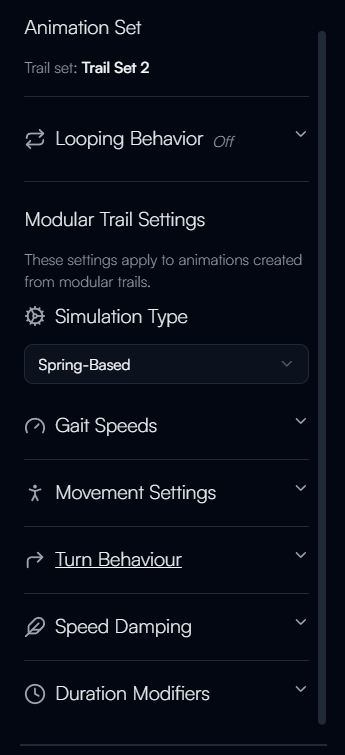
The Custom Trail Set workflow first displays the Choose a Style section. Then, additional settings are available for tailoring your chosen Trail Set to your dataset's needs. These settings include:

  • Looping Behavior

  • Modular Trail Settings

  • Gait Speeds

  • Movement Settings

  • Turn Behaviour

  • Speed Damping

  • Duration Modifiers

A dark and purple UI with dropdowns for customizing various animation options.
Example of the Animation Set section in Motion Factory when using Custom Trail Sets.

6. Animation Previewer

A T-posing, grey meshed model standing in a gridded line with 2 yellow callout numbers highlighting UI elements.
Overview infographic of the Animation Previewer's UI in Motion Factory.

The Animation Previewer allows you to preview and make final edits to your animations before they're generated. There are two key UI elements within this section:

  1. Animation Explorer

  2. Control Settings

The Animation Previewer functions the same for both Simplified workflows and for Custom Trail Sets.

Animation Explorer

A greyed out background with a callout highlighting a file explorer of different animations.
Highlighted diagram of the animation file explorer in Motion Factory's Animation Previewer.

All generated animations in your dataset can be viewed in the Animation Explorer. Once an animation is selected, the 3D viewport will begin playing the animation for preview.

The 3D viewport still includes the Y-up Axis and Character Settings panel as before.

Control Settings

A greyed out background with a callout highlighting toggles and buttons for additional animation options.
Highlighted diagram of additional animation settings in Motion Factory's Animation Previewer.

Whether selecting an animation, folder, or the entire dataset, the Control Settings allow you to enable Looping behavior and Phase Shifting.

If no animation is selected, you can make Batch Edits to all of the animations within your dataset, or you can select a folder to make batch edits to just the folder's animations.

If selecting an animation, you'll have options to preview the animation in the 3D Viewport and overwrite the animations seed.

Last updated